
Come vedere la password email su iPhone e recuperarla facilmente

May 22, 2026 • Filed to: Sblocca Dispositivo • Proven solutions
Managing multiple email accounts on your iPhone can be daunting—but you don’t have to struggle. In this guide, you’ll learn how to find email passwords on iPhone for Mail, Gmail, Outlook, and more—no resets required. Whether you’re on iOS 16 or an earlier version, we’ll show you step‑by‑step how to check your email password on iPhone quickly and securely.

Part 1: How to Check Email Password on iPhone Settings?
Follow the steps listed below to show email passwords on iPhone.
For iPhone running iOS 14 or later:
-
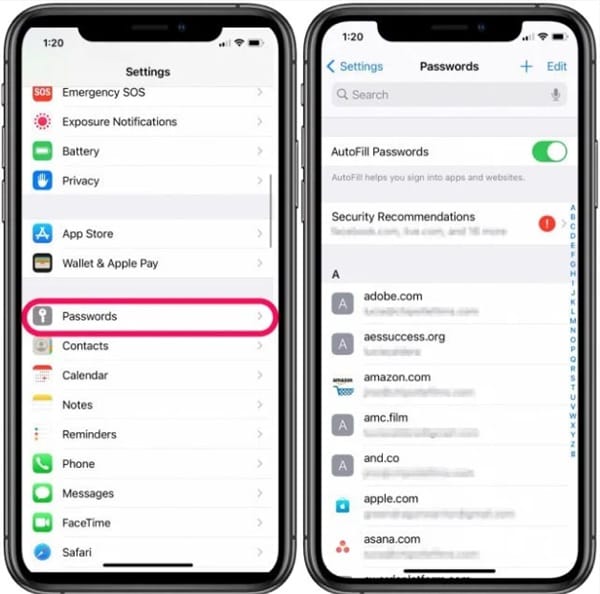
Open the Settings app (gear icon).
-
Scroll and tap Passwords.
-
Browse the list of saved credentials and select your email account.
-
On the account screen, tap the masked password field.
-
The password appears in plain text—copy or note it as needed.
For iPhone running iOS 13 or earlier:
-
Open Settings and tap Passwords & Accounts.
-
Under Accounts, select the email service you need (e.g., “Gmail”).
-
On the account details page, find the Password entry.
-
Tap the hidden password field to reveal your email password.

Dr.Fone Unlock Online - Free IMEI Check
iPhone 17 Is Here. Is Your Old Phone Ready to Sell?
Quickly check your iPhone or Android device status for free: Verify Blacklist, iCloud, Carrier Lock, and Warranty Status in Seconds. Ad-free, and globally.
Part 2: How to Find Saved Passwords with Siri?
Apple's ecosystem allows iPhone users to easily retrieve saved passwords, including email credentials, through Siri. Just ask, "Hey Siri, what's my email password?" and Siri will guide you to the Passwords & Accounts section in Settings, where you can view and manage your saved passwords. This feature is especially helpful for iOS 16 users.

📱 iPhone Frozen? Fix It in 3 Steps – No Data Loss!
Struggling with a frozen iPhone screen? 🤔 Our guide covers 6 common causes, step-by-step fixes for all models (iPhone 6s to iPhone 17), and safe data recovery. 98.6% success rate! ✨
Part 3: How to Find Email Passwords on iPhone via Password Manager Tool?
Now, you should know how to find email password on iPhone via settings or Siri. But if you still don't find the password or you want a faster and better way to manage all your account passwords on your iPhone. You can use other methods to retrieve your password in such a situation. Well, if this is the case with you, do not worry! We've you covered. Bringing to you, Dr.Fone - Password Manager, a highly utilitarian tool that helps you store your passwords on the go. With this software, you can save your passwords amidst complete security. Saving passwords becomes simpler and more secure. Listed below are a few super cool features of Dr.Fone - Password Manager!

Dr.Fone - Password Manager (iOS)
Never Missing Any Mail Passwords
- Saves passwords to mail, Wi-Fi, and app login credentials.
- Find back your Apple ID Account if you forgot.
- Export passwords on your iPhone to save them.
- Import the passwords to other tools (like LastPass) with one click.
Overall, Dr.Fone is a highly secure and smart way to store all your passwords!
Wondering how to find email password on iPhone?
Follow along with the video below to learn how to use this amazing software.
 safe & secure
Step-by-Step Guide: Follow along with the steps listed below to get your Gmail password!
Step 1: Download the Dr.Fone - Password Manager software on your desktop or macOS device. Once done, launch the software on your device. Then choose the “Password Manager” option.
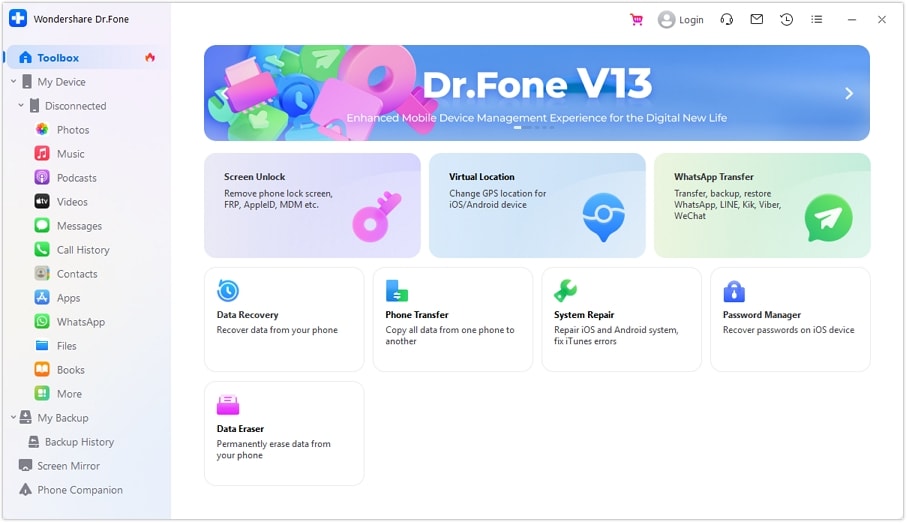
Step 2: Now connect your iOS device to your desktop. You can do this via any lightning cable. Once your computer detects the newly connected device, it will show a pop-up asking if you'd like to trust this device. Click on the “trust” option.
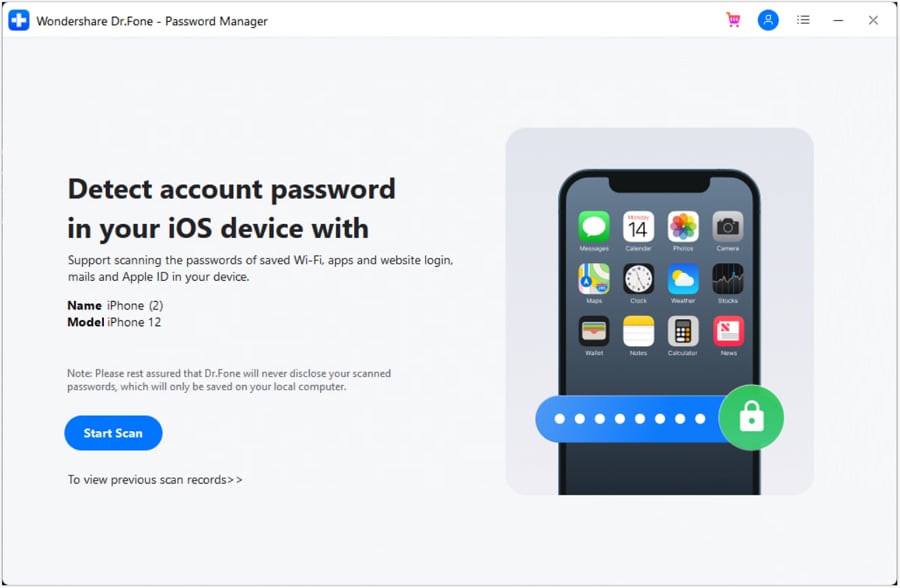
Step 3: Once the device has been set up, click on “Start Scan”. By doing so, the software will run through your device and look for passwords. Kindly wait patiently, as this may take a while!
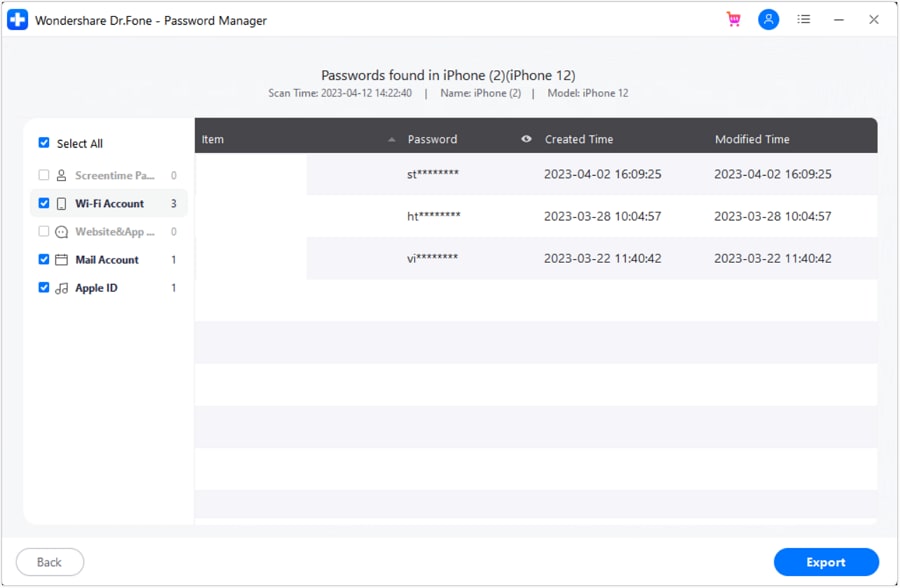
Step 4: Check for your passwords. Once done, the tool will display all the passwords that it found. Find the password you require from this list of credentials and note it down. You can also choose to export it, on doing so the passwords will be saved on your device to refer to them later on.
safe & secure| Method | Details | Benefit |
| Check in Settings | Go to Settings > Passwords, select your email account, and tap the password field to reveal it. | Immediate access without additional tools. |
| Ask Siri | Activate Siri and ask “What’s my email password?”, then follow the prompt to view it in Passwords. | Hands‑free and quick on supported iOS versions. |
| Password Manager App | Use Dr.Fone Password Manager to scan and securely display all stored email passwords on your iPhone. | Centralized management of multiple passwords. |
Part 4: Additional Tips for Finding Email Passwords on iPhone
Apart from the methods mentioned above, here are a few additional tips to help you find your email password on iPhone:
- Check your email account settings: Some email apps or service providers allow you to view and change your password within the app settings or account management options.
- Reset passwords through email service providers: If you can't retrieve your password using the methods above, you can visit your email service provider's website and follow their password reset procedures.
- Contact customer support: If all else fails, reach out to your email service provider's customer support for assistance. They can guide you through the process of recovering your email password.
Quick Tips You May Want to Know about Password Manager
Quick Tip 1: How to Edit Passwords on iPhone?
Changed your password recently? Do you want to update the password in your settings app as well? Well, here's how you can do it!
For iPhone with iOS 14 and later:
- Step 1: Open the "Settings" app on your iPhone. Scroll down and tap on "Passwords."
- Step 2: A list of saved passwords will show. Scroll down and find the email account or website for which you want to edit the password.
- Step 3: Tap on the email account or website, and a pop-up will appear showing the existing password.
- Step 4: Tap on "Edit" or the password field to modify the password.
- Step 5: Enter the new password for the email account and tap "Done" to confirm the changes.

For iPhone with iOS 13 and earlier:
- Step 1: First, open the "Settings" app on your Apple device and head to "Passwords & Accounts".
- Step 2: Next, click on "Website and App passwords."
- Step 3: A list of passwords that have been stored on your iPhone will appear on your screen.
- Step 4: Click on the password that you desire to change.
- Step 5: Then click on "Edit" on the top right corner of your screen.
- Step 6: Enter the new password and then click on "Done."

Quick Tip 2: How to Add and Delete Email Accounts and Passwords on iPhone?
You can follow the steps below to add the email accounts on your iPhone:
- Step 1: Open the "Settings" app on your iPhone's home screen.
- Step 2: Scroll down and tap on "Mail" or "Mail, Contacts, Calendars" (depending on your iOS version).
- Step 3: Tap on "Accounts" and then click "Add Account."
- Step 4: Select the email provider from the list (e.g., iCloud, Google, Microsoft Exchange, Yahoo, etc.), or choose "Other" if your email provider is not listed.
- Step 5: Enter your email address and password in the designated fields. You may also need to provide additional information such as server settings or domain information, depending on the email provider.
- Step 6: Tap "Next" or "Sign In."
- Step 7: Your iPhone will verify the account details and set up the email account. Once verified, you can customize the account settings based on your preferences.

If you wish to delete a particular email address, follow the below steps.
- Step 1: Open the "Settings" app on your iPhone.
- Step 2: Scroll down and tap on "Mail" or "Mail, Contacts, Calendars" (depending on your iOS version).
- Step 3: Tap on "Accounts" and choose the email account you want to delete.
- Step 4: Scroll down and tap on "Delete Account."
- Step 5: A confirmation pop-up will appear. Tap "Delete Account" to remove the email account from your device.
- Step 6: The email account and associated data will be deleted from your iPhone.
Note that deleting an email account will remove all associated emails, contacts, and calendar events from your iPhone. It is advisable to back up any important data before deleting an account.

Conclusion
Today we've seen the best tips and hacks for email saving on your iPhone. We've also learned how to find email password on iPhone. We checked out one of the best tools for managing passwords on your iOS device. Dr.Fone - Password Manager (iOS) allows you to manage all your passwords in one place. This saves time and allows you to stay relaxed. Further, we learned more about the addition and deletion of emails from your iOS saved emails! We hope this tutorial helped you recover your forgotten password with ease!
safe & secure


Nicola Massimo
staff Editor
Generally rated4.5(105participated)